
What you need
Have your base hourly rate, the dates of a real pay period, and the payroll timezone ready. Use your agreement, employer’s pay instructions, or another reliable source to confirm any overtime, callout, or per-diem rules. Do not turn on a rule simply because its example looks familiar.
These guides cover the iPhone app. No LinePaycheck username, password, or employer connection is required. A website help page does not contain your app’s records.
Set up your pay
- Open LinePaycheck and choose Check my paycheck.
- In Pay basics, choose your Pay currency (US dollar, Canadian dollar, or Vietnamese đồng), enter your Base hourly rate, and give the profile a name. Select the Payroll timezone used to interpret your work dates.
- In Pay period, choose weekly, every two weeks, twice monthly (1–15 or 16–month-end), or manual dates. Check the preview against the period you actually want to track—not the date money reaches your bank.
- In Your rules, enable only the rules you have confirmed under Overtime and premiums or Advanced rules. Leave the rest off; a base-rate-only estimate excludes overtime or premiums you did not turn on. Use I don’t see my rule to record missing coverage rather than approximating it.
- In Confirm rules, read the summary and choose Use these rules.
Use Back to correct a step. Unfinished setup is saved on the device; a save-error message means you should keep the screen open and address the problem before relying on that draft.
You can instead choose Import an agreement PDF from the welcome screen. Read agreement review before preparing a rule draft; a PDF import does not activate rules or verify applicability.
Record one actual shift
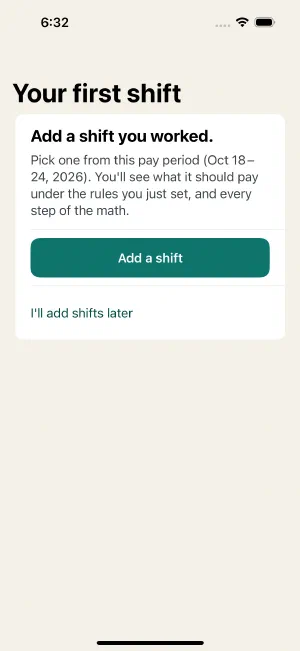
After Use these rules, the first-run flow opens Your first shift. Choose Add a shift to enter a real shift, or I’ll add shifts later if you are not ready. After the first saved shift, Your expected pay shows the result; choose Continue when you have read it. LinePaycheck then shows the optional Pro offer once, where Continue free keeps every free feature, and the normal tabs appear. Choosing I’ll add shifts later shows the same optional offer before the tabs. For later entries, use Today → Add work.
Select the work type, start and end dates and times, and any unpaid breaks. Check Actual worked time and the payroll timezone, then choose Save work.
For example, eight actual hours at an explicitly entered $50 rate, with no other configured rules, produce $400 in expected wages. This is a synthetic example, not a recommended rate or overtime policy. Only log a shift you actually worked in your own records.
Your saved entry appears in the work log. Expected wages should reflect the rules and work you entered. Tap an entry to correct it; open Pay to inspect the calculation.
When your paycheck arrives
Record all work for its period before comparing the full paycheck. Open Pay → Check first paycheck free, or open a closed period in History → Add this paycheck. Import or enter the paystub, review its fields, and confirm the gross basis.
The first comparable paycheck audit is free. An optional Pro offer can appear after you experience expected-pay value; continuing free does not require starting an App Store trial. Trial availability and terms are shown in the app.
Finish the loop
Read the result and its scope; a matching gross total is not a complete audit of every rule. Save a complete backup somewhere private. When the period has a safe, reviewable calculation, Pay → Finish work period can close it before payday and let you continue with the next period. If the app says Calculation needs review or cannot price an unresolved callout, keep the period open and resolve the stated problem; do not invent a paycheck or zero amount to force rollover.
Next: Set up a pay profile or review paystub fields .
Still unsure? Keep your original records and get help before changing facts to make a total match.